Drawing Pad Pro - Sketchpad
- 4.5
- Rating
- 1.00M
- Installs
- Free
- Price
 Analysis by App-foxy
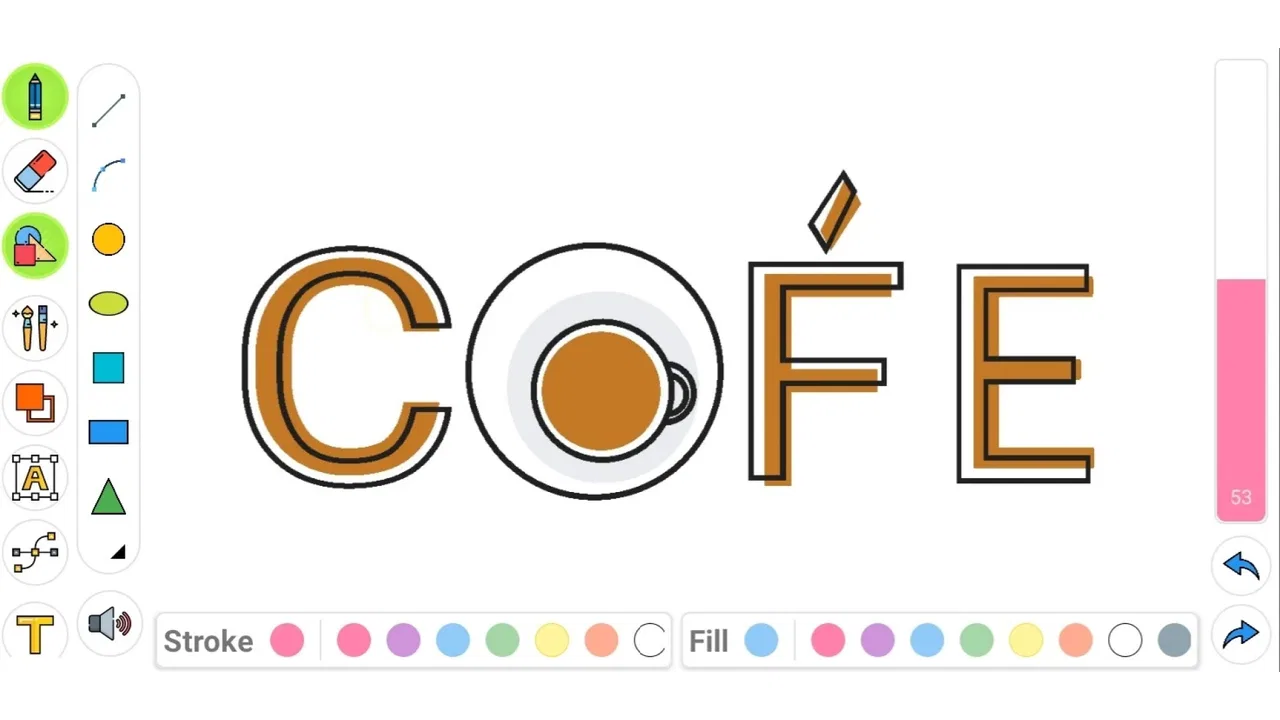
Drawing Pad Pro - Sketchpad is the kind of drawing app I would keep on my phone for quick ideas, casual creativity, and moments when I want to sketch without setting up a full desktop program. My overall impression is simple: it succeeds because it makes drawing feel approachable, but it is not meant to replace a serious illustration studio. The experience sits between a digital notebook and a lightweight art pad, which makes it especially comfortable for beginners, children, students, and anyone who wants to draw without a steep learning curve.
Developed by DOSA Apps, it belongs to the Art & Design category and is available as a free app for everyone. That combination matters because the app is easy to try without committing money first. I could open it for a quick doodle, use it as a visual thinking space, or hand it to someone who has never used a drawing app before. Its current version is 4.3.4, and it runs on Android devices using version 5.0 or later, so it remains accessible on a broad range of older phones and tablets.
Why this sketchpad feels easy to return to
The strongest part of the experience is the low friction between having an idea and putting it on the screen. A complicated art application can offer impressive control while still discouraging casual use. Here, the appeal is different. I can approach it with a rough intention rather than a complete plan: a small character, a note surrounded by arrows, a pattern, or a simple drawing to share with someone.
You May Also Like

 Blood Strike: 2.5 Anniversary
Blood Strike’s Loadouts Turn Every Drop Into a Tactical Gamble
A close look at Blood Strike’s custom loadouts: how fast access to signature weapons reshapes its battle royale rhythm, rewards preparation, and narrows the gap between fights.

 Pandora - Music & Podcasts
Pandora’s Music Is Easy to Start, but Harder to Recover
Pandora’s strength is its low-effort path from a seed to a station. Its weak spot is how much confidence it asks you to place in connection, setup, and quiet recovery.

 8 Ball Pool
 Is Built on Rivalries, Rematches, and Routine
A close look at the rivalries, rematches, shared routines, and unanswered safety questions that turn a quick pool match into a persistent mobile community.

 Samsung Music
’s Quiet Strength Is Playing What You Already Own
Its reach comes less from spectacle than from dependable access to a personal library. That simplicity is both the app’s strongest retention engine and its ceiling.

 AccuWeather: Weather Radar
AccuWeather Review: A Quick, Clear Forecast for Everyday Decisions
For everyday plans, the best forecast is the one you can understand quickly. AccuWeather makes rain timing, radar, and local conditions easy to act on, with a few trade-offs.

 Hill Climb Racing
Why Hill Climb Racing Still Turns Crashes Into One More Run
A tiny car, a bumpy hill and one more upgrade: Hill Climb Racing keeps resurfacing because its simple chaos makes every near-miss feel personal.
More From Our News Desk



That makes it useful beyond traditional art. I can imagine using it while planning a room layout, marking up a thought during a lesson, creating a handmade-looking greeting, or helping a child practice shapes. The app’s store summary calls it a fun drawing tool for all age groups, and that description matches its broad appeal without requiring the user to identify as an artist.
The interface is also better suited to short sessions than to formal projects. When I am sketching casually, I do not want to spend the first few minutes arranging panels or learning a complex tool system. Drawing Pad Pro - Sketchpad works best when the goal is immediate expression. The result may not have the precision of work made in a professional illustration package, but the path to that result feels much less intimidating.
One practical strength is the way a simple canvas can support several different habits. I can use it for freeform doodling, but I can also treat it as a private practice area. Repeating the same object with different proportions, testing a few color combinations, or trying to draw from memory becomes less formal when the app feels like a pad rather than a production suite.
The real advantage is not professional depth; it is creative immediacy. That distinction helps set the right expectation. If I want to make a quick visual note, the app feels appropriate. If I want detailed control over every stroke, layer, and export decision, I would look toward a more specialized alternative.
A useful tool for everyday visual notes
One of my favorite use cases for this type of app is turning vague thoughts into visible ones. Suppose I am rearranging furniture and cannot explain an idea clearly in a message. A rough floor plan with arrows can communicate more than several sentences. The drawing does not need to be polished; it only needs to make the relationship between objects understandable.
The same applies to study. A student can sketch a diagram, draw a timeline, or combine words and symbols in a way that feels more memorable than typing a plain note. Parents may find it useful for simple creative activities, especially when a child wants to draw independently but is not ready for a complex art program.
There is also value in using the app as a warm-up space. Before opening a more advanced application, I can spend a few minutes drawing loose lines and shapes here. That separates the act of getting ideas out from the pressure to produce a finished image. For beginners, this can make practice feel more enjoyable and less like a test.
Where it compares well with familiar alternatives
Compared with drawing on paper, the app is more convenient when I want a clean digital result and do not want to carry a notebook. It is also easier to experiment without wasting paper. Compared with a standard notes app, it offers a more natural place for visual thinking, since a blank drawing surface encourages shapes, symbols, and handwritten marks rather than forcing everything into text.
Against a professional illustration application, however, its appeal is narrower. Advanced tools are valuable when I need carefully organized artwork, repeatable precision, or a workflow designed for publishing. A lightweight sketchpad cannot reasonably offer the same depth without losing the simplicity that makes it inviting. For that reason, I see this app as a companion to serious tools rather than a direct replacement for them.
It also occupies a different space from coloring-focused applications. Coloring apps usually guide the user toward filling prepared designs, while a sketchpad begins with the freedom to create the image yourself. That is better for people who want to invent their own subjects, but less suitable for someone who mainly wants a relaxing, structured coloring activity.
Small workflows that make the app more useful
A good way to use it is to begin with a deliberately rough pass. I draw the largest shapes first, ignore details, and only then decide whether the idea is worth refining. This prevents a common beginner problem: spending too much time perfecting one small area before the overall drawing has a clear structure.
Another helpful habit is to use separate short sessions for different purposes. I might make one drawing for brainstorming, another for practice, and another for something I intend to show someone else. Keeping those intentions distinct makes the app feel less cluttered mentally, even when the drawings themselves are simple.
I also recommend treating the first version of a drawing as disposable. The pressure to create something impressive is one of the quickest ways to stop enjoying a sketching app. A quick attempt at a face, plant, map, or logo idea can reveal what needs changing. The app is most valuable when it supports that cycle of trying, noticing, and trying again.
For children, I would use it as a guided activity rather than simply handing over a blank canvas and expecting a long session. Asking a child to draw three kinds of weather, invent a creature, or illustrate a short story gives the open space a purpose. For adults, a similar prompt can turn an idle few minutes into a small creative break.
Where the experience becomes less convincing
The same simplicity that makes the app welcoming can feel limiting once my expectations rise. I would not choose it as the main workspace for a detailed illustration project. When a drawing needs many carefully controlled parts, consistent editing, or a highly organized production process, a more advanced app is likely to be a better fit.
This is not a flaw in the basic idea, but it is an important boundary. A beginner may start here because the interface feels comfortable, then eventually want more control as their skills develop. At that point, moving to another application may be necessary. The transition can be worthwhile, but users should not assume that a friendly sketchpad will automatically scale into a complete professional workflow.
The free entry point also deserves a practical look. The app costs nothing to download, but in-app purchases range from $0.99 to $99.99 per item. That broad range means I would pay attention to any purchase screen before confirming anything, especially if a child uses the device. The free version is enough to evaluate whether the drawing experience suits me, so I would spend only after identifying a specific reason to do so.
That purchase structure may also affect how different users judge the app. Someone looking for a completely unrestricted free art tool may feel cautious, while someone who enjoys the basic experience and wants optional extras may find the arrangement reasonable. My advice is to test the core workflow first rather than assuming that every useful possibility is included at no cost.
Another limitation is the nature of touch drawing itself. On a phone, a finger can feel imprecise, particularly when I try to make small details. A larger tablet or a compatible stylus can make the experience more comfortable, but the app should not be viewed as a precision instrument simply because it is digital. For tiny lettering or intricate line work, paper with a fine pen or a specialized tablet setup may still feel better.
Screen size changes the experience considerably. A phone is convenient for spontaneous sketches, but it leaves less room for broad gestures and detailed compositions. A tablet is more suitable for longer drawing sessions. This is one reason I would recommend the app strongly for quick ideas and casual practice, but more cautiously for anyone planning to spend hours on one complex image.
Who should install it and who should look elsewhere
I think it is a particularly good choice for beginners who want to explore drawing without learning a large professional interface. It also suits families, casual doodlers, students, and people who like visual journaling. The Everyone content rating reinforces that broad audience, although ordinary device supervision is still sensible when purchases are available.
It is also a good match for someone who wants a digital alternative to carrying a sketchbook. The free price makes experimentation easy, and the low-pressure format encourages use in short bursts. If the goal is to capture an idea before it disappears, that convenience matters more than having every advanced art feature.
I would be more hesitant to recommend it to a professional illustrator, a comic artist who needs a carefully managed production pipeline, or a designer who depends on exact geometry and repeatable editing. Those users should compare it with tools built around layers, precision, and export-oriented work. The app may still be useful as a quick idea pad, but it should not be their only creative application.
It is also not the first choice for someone who dislikes making marks from scratch. If the preferred activity is coloring finished templates, guided lessons, or using a large library of ready-made assets, a different kind of art app will probably be more satisfying. Drawing Pad Pro - Sketchpad rewards personal input; it does not remove the need to decide what to draw.
What the community response suggests
The app has an average rating of 4.5 from around 20 thousand ratings, along with more than 500 reviews. I read that level of response as a sign that its accessible concept works for a substantial audience, though a strong average should not be mistaken for proof that it fits every workflow.
Its reach is also significant, with over one million installs. That makes it easier to view the app as an established casual drawing choice rather than an obscure experiment. Still, popularity does not change the central trade-off: the app’s value comes from convenience and approachability, while users seeking deep control may eventually need something more specialized.
For me, the best way to judge it is to ask one question: do I want a friendly place to draw, or a full digital art studio? If the answer is the first, the app makes sense. If the answer is the second, I would treat it as a supplementary sketchpad and continue searching for a more powerful primary tool.
My recommendation after using it
Drawing Pad Pro - Sketchpad earns my recommendation for casual and beginner-friendly drawing. I like that it lowers the barrier to starting, supports practical visual notes, and works for a wide range of ages and experience levels. It is the sort of app I can open without a project plan, use for a few minutes, and close feeling that I have made something rather than configured software.
I would install it first on a phone or tablet used for quick creative work, then spend time testing the free experience before considering any optional purchase. If I were buying a device specifically for detailed digital art, I would choose a more advanced solution. But for doodles, practice, visual brainstorming, and relaxed personal creativity, this app has a clear purpose and delivers it well.
My final view is that its restraint is both its identity and its limitation. It does not need to become a complicated studio to be useful. It simply needs to make drawing feel available whenever an idea appears. For that audience, DOSA Apps has created a practical and approachable Art & Design app that I would happily recommend to a friend who wants to start drawing digitally without feeling overwhelmed.
FAQs for Drawing Pad Pro - Sketchpad
01What is Drawing Pad Pro - Sketchpad used for?
Drawing Pad Pro - Sketchpad is a digital art application designed for sketching, doodling, coloring, and creating illustrations on a mobile device. It provides a canvas-based workspace where you can draw with your finger or a compatible stylus, making it suitable for quick ideas, practice exercises, notes, and more detailed artwork. The app is generally approachable for beginners while still offering useful tools for casual creative work.
02What drawing tools and customization options does the app include?
The app typically gives users access to essential drawing tools such as pencils, pens, brushes, erasers, color controls, and adjustable stroke sizes. Depending on the version installed and the device being used, you may also find options for changing opacity, selecting colors from a palette, undoing or redoing actions, and working with different canvas settings. These features make it possible to create both simple sketches and more expressive digital drawings.
03Can I use Drawing Pad Pro - Sketchpad without an internet connection?
Basic drawing functions can generally be used offline after the application has been installed, which is convenient when you want to sketch while traveling or without a stable connection. However, some features may depend on internet access, including advertisements, optional content, cloud-related services, updates, or in-app purchases. It is also recommended to save or export important artwork regularly, since offline availability and storage behavior can vary by device and app version.
04Is Drawing Pad Pro - Sketchpad suitable for children and beginners?
Drawing Pad Pro - Sketchpad can be a suitable starting point for children, students, and beginners because its main purpose is straightforward: open a canvas, choose a tool, select a color, and start drawing. Younger users may need help understanding advertisements, purchases, file permissions, or export options. Adults should review the app’s current content and privacy settings before handing it to a child, as features and policies may change with updates.
05Does the app support saving, exporting, or sharing finished drawings?
The application is intended to let users keep their creative work, and saving or sharing options may include storing drawings on the device, exporting them as image files, or sending them through compatible apps. The exact formats, resolution choices, and sharing destinations can depend on your operating system and the installed version. Before uninstalling the app or clearing its data, confirm that important artwork has been exported or backed up.
Pros
- Simple tools make it easy for beginners to start sketching quickly.
- Supports creative practice without requiring advanced drawing knowledge.
- Useful for quick doodles
- notes
- and rough visual ideas.
- A focused interface keeps attention on the drawing canvas.
- Suitable for casual drawing sessions on phones and tablets.
Cons
- Advanced artists may find the brush and editing options too limited.
- Small screens can make detailed drawing less comfortable.
- Some features may require in-app purchases or a paid upgrade.
- Large
- detailed sketches may use considerable device storage.
- The experience can vary depending on stylus and device compatibility.

Drawing Pad Pro - Sketchpad
Gallery